

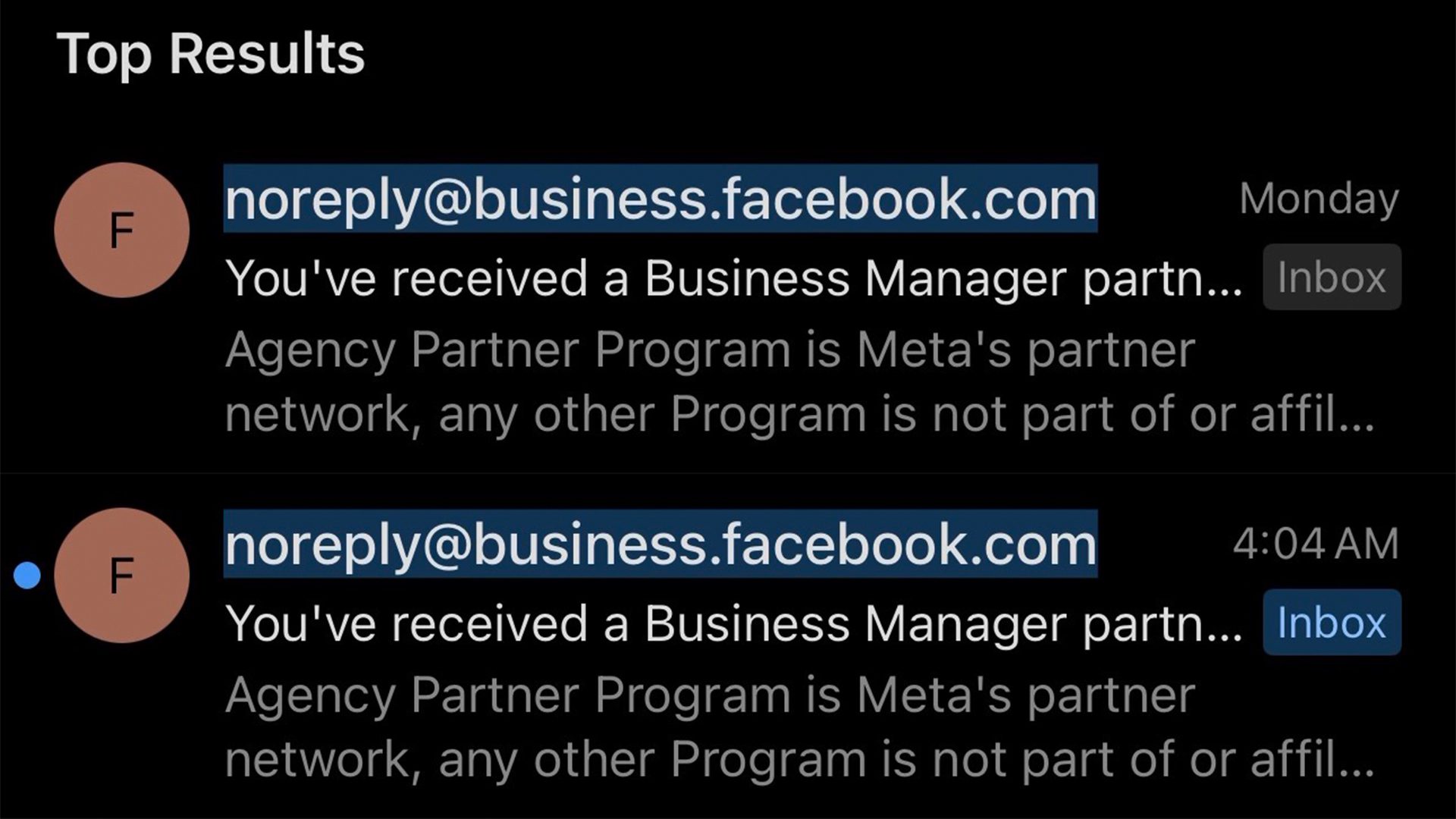
If you manage a Facebook page or run ads through Meta Business Manager, there’s a good chance you’ve seen one of these emails. It looks official. It uses Meta branding. And it wants you to click a link — don’t do it.
A sophisticated phishing scam is targeting Meta Business Manager users right now, and it’s specifically designed to fool people who know what a real Meta email looks like. This post breaks down exactly what the scam looks like, how to recognize it, and what to do if you’ve already clicked something you shouldn’t have.
What Is the Meta Business Manager Phishing Scam?
This scam shows up in your inbox disguised as an official communication from Meta. The emails often claim something is wrong with your account — your page is “at risk,” your account is about to be restricted, or you’ve been invited to join a partner program.
Common subject lines and themes include:
- Meta Agency Partner Program — An invitation that looks like an exclusive opportunity but is designed to steal your login credentials.
- Business Partner Request — Appears to come from Meta’s business team, claiming your account needs attention.
- Your account will be restricted — Creates a sense of panic to push you into clicking without thinking.
What makes this scam particularly dangerous is how legitimate it looks. The email may use official Meta logos, real Meta domain names in the body text, and professional formatting that passes the quick-glance test. Unlike the obvious spam of years past, these emails are built to fool people who are paying attention.
How to Tell If a Meta Email Is a Scam
1. Check the Sender’s Email Domain
The number one way to catch a phishing email is to look at where it actually came from — not the display name, but the actual email address.
Legitimate Meta communications come from a small set of official domains:
- @fb.com
- @meta.com
- @mail.instagram.com
- @account.meta.com
- @global.metamail.com
Scam emails often come from completely unrelated addresses. They may use the display name “Meta” or “Facebook” but the actual sending address gives them away. Always click or tap the sender name to reveal the full email address before you do anything else.
2. Watch for Urgency and Threatening Language
Scammers know that panic overrides logic. That’s why these emails almost always include language designed to make you act fast:
- “Your account will be disabled in 24 hours”
- “Immediate action required”
- “Your page is at risk of being permanently removed”
Meta may send real notifications about policy violations, but they don’t typically threaten instant account deletion with a countdown timer. If an email is pressuring you to act right now, that pressure is intentional. Slow down and verify before you click anything.
3. Inspect Every Link Before You Click
Just because an email looks legitimate doesn’t mean every link in it is safe. Phishing emails often mix real Meta links with malicious ones to build trust before they steal your information.
Before clicking any link:
- On desktop: Hover over the link and look at the URL that appears in the bottom corner of your browser.
- On mobile: Long-press the link to preview the destination URL before opening it.
If the link redirects to an unrelated domain or anything that doesn’t match a standard Meta URL — don’t click it.
4. Ask Yourself: Was I Expecting This?
Context is one of the best scam detectors you have. Before engaging with any unexpected email, ask yourself:
- Did I apply for a Meta partner program?
- Did I request changes to my Business Manager account?
- Has anyone on my team mentioned anything about this?
- Did Meta reach out to me through another channel first?
If the answer to all of those is no, treat the email with serious suspicion. Real business communications from Meta don’t usually appear out of nowhere.
5. Log Into Meta Business Manager Directly
If an email claims there’s a problem with your account, don’t use the link in the email to check. Instead, open a new browser tab and go directly to business.facebook.com. Check your notifications there.
If there’s actually an issue with your account, Meta will tell you when you log in. If you see nothing in Business Manager, that’s a strong sign the email is fake.
Common Fake Program Names to Know
Scammers often invent official-sounding program names to make their emails feel legitimate.
Here are some of the most common fake names being used in these phishing campaigns:
- Meta Agency Partner Program
- Meta Professional Partner Program
- Meta Media Agency
- Business Manager Partner Request
- Meta Business Suite Invitation
None of these are real programs that Meta uses to contact businesses through unsolicited emails. If you receive an email referencing any of these, treat it as a red flag.
What to Do If You Received One of These Emails
If a suspicious email landed in your inbox, here’s how to handle it:
- Do not click any links. Even links that look real could redirect you through a malicious site first.
- Delete the email or mark it as phishing. Most email clients have a “Report Phishing” option.
- Forward the email to Meta. Report phishing attempts directly to Meta at phish@fb.com.
- Log into Business Manager directly to confirm your account status.
- Check for unauthorized users. In Business Manager, go to Settings and review your partners and admins to make sure no one has been added without your knowledge.
What to Do If You Already Clicked a Link
If you clicked a link in one of these emails — even if you didn’t fill anything out — take action now.
- First, secure your Meta account:
- Change your Facebook password immediately.
- Log out of all active sessions (Settings → Security and Login → Where You’re Logged In).
- Enable two-factor authentication (2FA) if you haven’t already.
Then, review your Business Manager:
- Go to https://business.facebook.com → Settings → People and Assets.
- Remove any partners, admins, or users you don’t recognize.
- Check your connected ad accounts for any unauthorized activity or charges.
If you entered your credentials, assume your account is compromised. Contact Meta Support directly through https://www.facebook.com/business/help and document everything.
How to Protect Your Meta Business Manager Account Going Forward
Prevention is easier than recovery. These steps will make your account significantly harder to compromise.
- Enable two-factor authentication. This is the single most effective thing you can do. Even if someone gets your password, they can’t get in without the second verification step. Go to Settings → Security and Login → Two-Factor Authentication.
- Audit your Business Manager regularly. Review who has admin or partner access to your account every few months. Remove people who no longer need access.
- Train your team. If anyone else manages your Business Manager, they need to know how to spot these scams too. One click from a team member can be just as damaging as one from you.
- Use a strong, unique password. Don’t reuse passwords across platforms. A password manager makes this easy to maintain.
Frequently Asked Questions About Meta Business Manager Phishing Scams
How do I know if an email from Meta is real?
Check the sender’s email domain first. Legitimate Meta emails come from @fb.com, @meta.com, @mail.instagram.com, @account.meta.com, or @global.metamail.com. If the address doesn’t match one of those, it’s not from Meta.
What is the Meta Agency Partner Program?
There is no official Meta program by that exact name that solicits businesses through cold email. Any email referencing a “Meta Agency Partner Program” or similar title is almost certainly a phishing attempt.
Can I report phishing emails to Meta?
Yes. Forward suspicious emails to phish@fb.com. You can also report the sender directly through your email provider’s phishing report tool.
What happens if I click a phishing link?
Change your Meta password and enable two-factor authentication immediately. Check Business Manager for unauthorized access and review your connected accounts for suspicious activity.
Is Meta Business Manager safe to use?
Yes — the platform itself is secure. The threat comes from phishing emails that try to get your login credentials outside of the platform. Using 2FA and staying cautious about unsolicited emails keeps your account protected.
The Bottom Line
The Meta Business Manager phishing scam works because it looks legitimate. It uses familiar branding, creates real urgency, and targets people who are already engaged with their business accounts. But once you know what to look for, it’s much easier to spot.
The key checks are simple: verify the sender’s email domain, look for urgency and threats, don’t click unexpected links, and always log into Business Manager directly to confirm any account issues.
Share this post with your team if you’d like to get them up to speed quickly. The more people who know what this scam looks like, the harder it is for it to work.
Need help taking control of your marketing? Biondo Creative helps businesses with social media management, Google advertising, and marketing strategy. Contact us to start the conversation.