

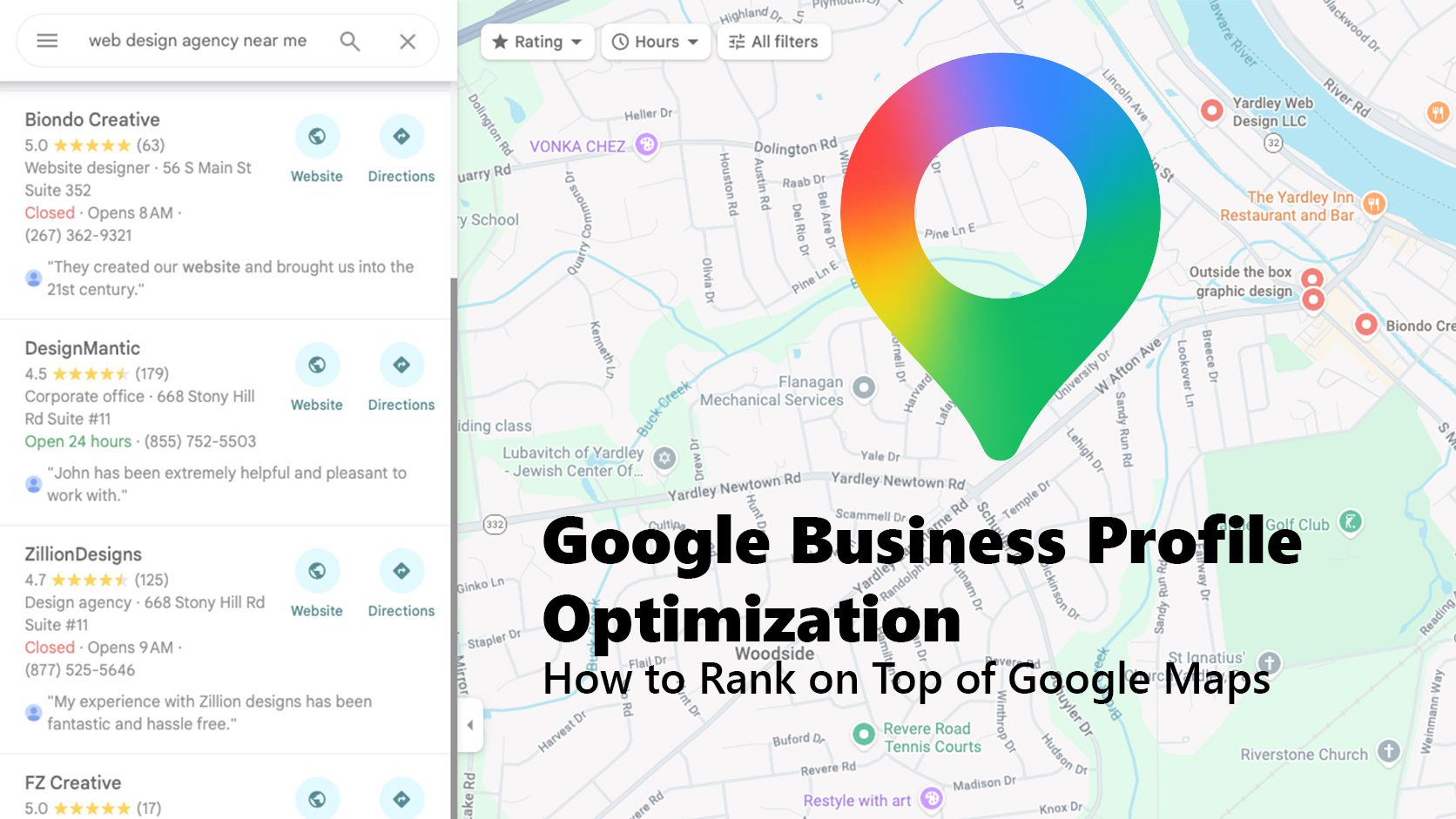
If you operate a local service business or manage a physical storefront, showing up at the absolute top of Google Maps isn’t just a perk—it is the lifeblood of your digital marketing strategy. Whenever prospective customers search for local solutions, Google displays a curated map section known as the “Local 3-Pack” directly above traditional organic text search results.
Winning these top spots requires a deep understanding of google business optimization and local search signals. This complete guide will break down how to get your business onto the map, claim ownership of your data, optimize your profile to maximize visibility, and manage your location information without risking an algorithm penalty.
How to Get Your Business on Google Maps
If your business isn’t appearing on the map yet, you need to initiate a formal setup process with Google. This involves either creating a completely fresh profile or claiming a listing that Google’s algorithm has automatically generated using public data aggregates.
How to Create a Google Business Profile for My Business
Getting started is straightforward, but accuracy is paramount to avoid delays. Follow these foundational steps:
- Sign In: Open your browser and navigate to google.com/business. Click Sign In using the primary Google account you want associated with your company.
- Enter Business Name: Type your business name exactly as it appears in the real world. This ensures you don’t accidentally create a duplicate if a partial listing already exists. Click Create a business with this name.
- Select Your Primary Category: Choose the specific business category that aligns closest with your core service (e.g., “Plumber,” “Electrician,” or “HVAC Contractor”).
- Determine Location Type: Google will ask if customers visit your physical location. If you have a physical office or storefront where people walk in, select Yes. If you work out of a home office and travel directly to your customers, select No.
- Add Contact Details: Input your professional phone number and exact website URL.
- Submit for Verification: Google will require verification—typically via phone, email, or a detailed business video walkthrough—before your profile goes completely live to the public.
For a step-by-step visual walkthrough showing the entire setup flow in action, watch our comprehensive tutorial video: Setting Up Google Business Profile for New Businesses.
How to Claim a Google Business Profile If It Already Exists
Frequently, Google already has your business in its database but lists it as “unclaimed”. If you find your business on Google Maps and you are the true owner, you can claim it immediately:
- Open Google Maps and search for your business name.
- Look for a link on the listing that reads “Claim this business” or “Own this business?“
- Click the link and follow the prompts to verify your identity. Once Google confirms your ownership via phone or mail, full managerial control of the profile will be transferred directly to your Google account.
How to Optimize Your Google Business Profile for Maximum Rankings
Simply filling out the basic setup forms isn’t enough to secure a top-three spot on Google Maps. To signal authority to Google’s ranking algorithm, you must actively enhance and optimize every single section of your profile.
- Craft a “No-Fluff” Description: You have up to 750 characters to explain what your company does. Write a clear, narrative-driven description focused entirely on human readers. Avoid stuffing random keywords; instead, weave in your primary services and regional locations naturally.
- Select Relevant Secondary Categories: While your primary category carries the most ranking weight, adding accurate secondary categories expands your visibility for related searches. For example, an HVAC company should use “HVAC Contractor” as their primary option, while adding “Air Conditioning Repair Service” and “Heating Contractor” as secondary options.
- Add High-Quality, Square Visuals: Profiles with regular photo uploads generate significantly more engagement and clicks. Prepare a clean, square logo image sized at 1080px x 1080px. Additionally, upload an appealing cover photo that tells the visual story of your work, such as a wrapped company vehicle or active project sites.
- Explicitly Link Your Social Profiles: Ensure Google understands your full digital footprint by adding direct links to your active Facebook, Instagram, LinkedIn, or TikTok accounts within your dashboard settings. Always copy and paste the exact URLs straight from your browser to prevent broken links and maintain a flawless user experience.
Stay up to speed with the latest Google Business Profile Optimization Tips
Subscribe to our YouTube channel to get updates as we publish them. You can also check out the GBP Optimization Playlist below.
The Safe Way to Change Your Business Address Without Getting Suspended
Modifying your address is one of the most common triggers for sudden profile suspensions, as Google’s automated systems closely monitor location edits to prevent fraudulent listings. If you are moving offices or changing locations, you must approach the update strategically:
- Update Your Digital Assets First: Before touching your Google Business Profile dashboard, update the physical address across your primary website pages (such as your footer and contact page).
- Sync Regional Citations: Ensure your new address is updated across major external business directories (like Yelp, YellowPages, and local Chambers of Commerce).
- Wait for Search Indexing: Do not change your Google listing immediately. Wait approximately one full week after updating your website to allow Google’s web crawlers to discover, index, and verify the new address on your own domain first.
- Update Google Last: Once the rest of the web reflects your new location, log into your Google Business dashboard and submit the address change. Because Google can easily match the edit against your website’s indexed data, the system is far more likely to process the change smoothly without flagging the account for review.
How to Delete a Google Business Profile
If a business permanently closes, undergoes a complete structural merger, or if you accidentally generated a duplicate listing, you will need to remove the profile from search results.
- Log into your profile manager dashboard and select the specific business location you want to remove.
- Click on Business settings or the three-dot option menu.
- Select Remove Business Profile.
- Choose whether you want to mark the business as “Permanently Closed” or completely sever your account’s management ties to delete the profile entirely from your control panel.
Frequently Asked Questions
Is Google Business Profile free?
Yes. Creating, managing, claiming, and optimizing a Google Business Profile is completely free of charge for all legitimate business owners. Google does not charge subscription fees or placement fees to appear within standard organic Google Maps searches.
What is the difference between a brick-and-mortar location and a service area business?
Brick-and-Mortar Location: This option is strictly for businesses that operate out of a physical storefront or office where clients physically walk through the doors during stated business hours (e.g., a retail store, medical clinic, or law firm). Your exact street address will be publicly visible on Google Maps.
Service Area Business (SAB): This setup is engineered for mobile trade professionals who travel directly to their customers to perform work (e.g., plumbers, electricians, or landscapers) and do not host customers at their home or private office. Your specific physical address remains completely hidden from public view, and Google instead displays a broad shaded boundary mapping out your service area.
How can I create a Google Business Profile without a public address?
If you run a home-based business or a service area company, you still must provide a legitimate, verifiable physical address during the initial setup phase so Google can confirm your geographic existence and send physical verification materials if required. However, by selecting No when Google asks if customers visit your location, you classify yourself as a Service Area Business. This ensures your address stays completely private and hidden from the public map.
How do I get my business to show up on Google Maps?
To appear on the map, your profile must be fully verified and active. Submit all required verification data (such as a business video walkthrough showing your tools, letterhead, wrapped vehicles, or commercial signage) directly through your Google dashboard. Once Google completes its review process, your listing becomes public and searchable on the map index.
How do I drop a pin on Google Maps?
If your physical location isn’t registering correctly at your street address, you can manually adjust your pin placement. Go to your profile dashboard, click Edit Profile, select your Location tab, and click on the map preview. From there, you can drag the red map pin directly over the exact rooftop or entrance of your physical building to ensure navigating customers arrive at the precise location.
Dominate Your Local Search Landscape
Ranking at the top of Google Maps doesn’t happen by accident. It requires consistent optimization, clear messaging, and a strategic approach to local SEO. If you want to streamline your local presence and turn online searches into real-world phone calls, the team at Biondo Creative is here to execute.
Ready to grow your local business? Contact us for a free discovery call or reach out directly to the digital experts at Biondo Creative by calling 267-362-9321 to see how we can optimize your online visibility.